



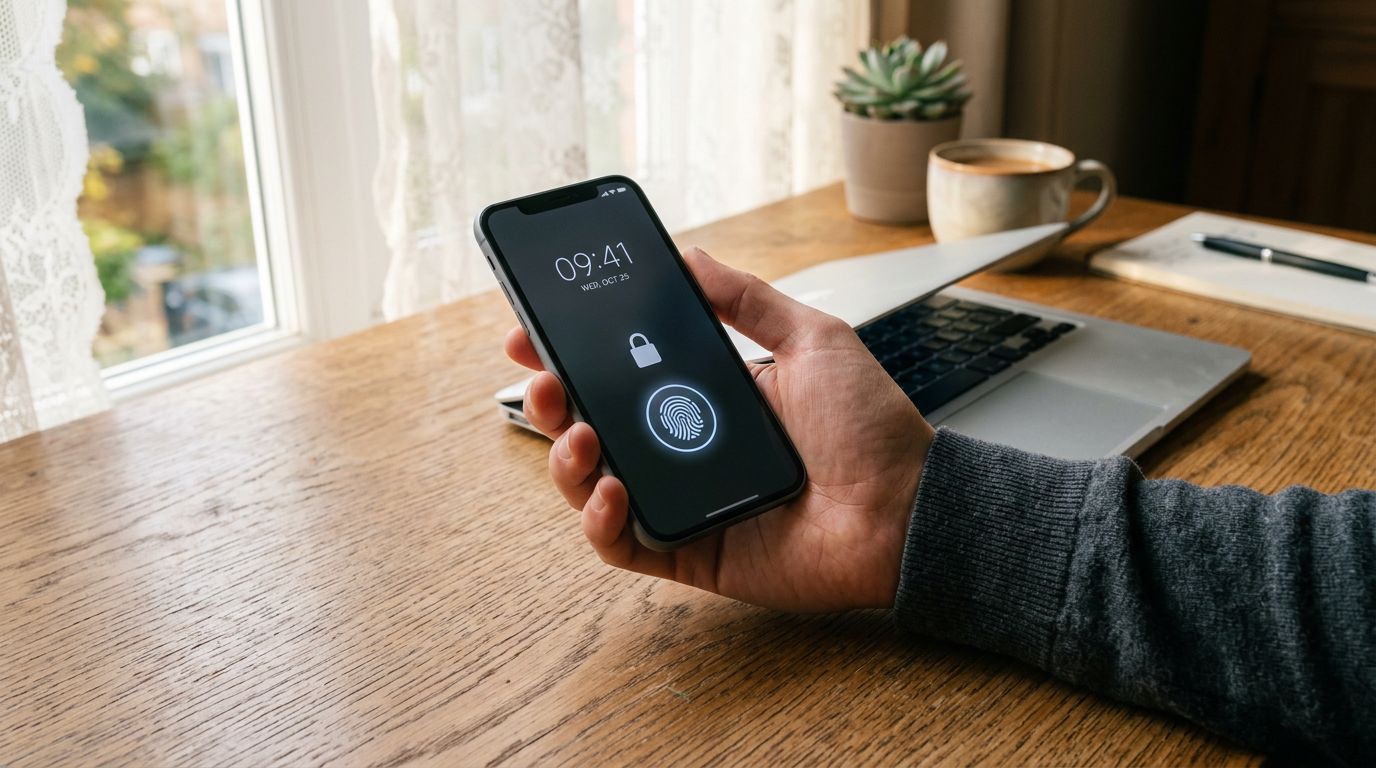

What is a passkey? It is a way to sign in to an app or website without typing a password. Instead, you prove it is you with whatever you already use to unlock your phone or computer, such as your fingerprint, your face or your screen-lock PIN. Britain’s National Cyber Security Centre (NCSC) now recommends passkeys over passwords wherever a service offers them, because they are much harder for criminals to steal or trick you into handing over. This guide explains what a passkey is, how it works and how to set one up on the devices most people use.
What is a passkey, in plain English?
Think of a passkey as a digital key that lives on your trusted devices rather than in your head. When you create one for an account, your device makes a unique secret for that service and keeps it locked away. The next time you sign in, the website asks your device to prove it holds the right key, and your device asks you to unlock it first with your fingerprint, face or PIN. You never see or type the secret itself.
The NCSC describes passkeys as a complete, passwordless alternative to traditional passwords, built on an industry standard known as FIDO2. Big platforms including Apple, Google and X already let people use them in place of passwords, and more services are adding the option.
Your fingerprint does not leave your phone
A common worry is that using a face or fingerprint means handing biometric data to a tech company or website. That is not how passkeys work. The biometric check only unlocks your own device. Google, for example, says the fingerprint or face data used for this stays on the device and is never shared with it. The website only receives confirmation that the correct passkey was used.
Why passkeys are safer than passwords
Passwords have three weaknesses that criminals exploit every day: people reuse them, people choose ones that are easy to guess, and people can be fooled into typing them into fake websites. Passkeys deal with all three.
- Nothing to reuse or guess. Each passkey is unique to one service and is generated by your device, so there is no weak or recycled password to crack.
- Resistant to phishing. According to the NCSC, passkeys cannot be intercepted, reused or stolen in the way passwords can. A passkey only works with the genuine website it was made for, so a convincing fake login page gets nothing useful.
- As strong as two-step verification, or stronger. The NCSC says its technical analysis shows passkeys are always at least as secure as a strong password combined with two-step verification (2SV).
- Quicker to use. The NCSC points to Microsoft figures suggesting passkey sign-ins can be up to eight times faster than a username, password and 2SV code.
Security experts are careful to add that passkeys are not a silver bullet. Your account is still only as safe as the device and the credential manager that hold the passkey, so keeping your phone locked and your software up to date still matters.
Where passkeys are stored
Passkeys are created, saved and managed by a credential manager, which is the same thing as a password manager. For most people this is the one already built into their device:
- Apple Passwords on iPhone, iPad and Mac, which stores passkeys in iCloud Keychain so they are available on every device signed in to the same Apple Account.
- Google Password Manager on Android phones and in the Chrome browser.
- Samsung Pass on Samsung Galaxy devices.
You can also use a third-party password manager instead, which can be useful if you switch between, say, an iPhone and a Windows laptop. The UK government’s Stop! Think Fraud campaign notes that the credential manager both protects your passkeys and backs them up, and it can sync them across your trusted devices, so you do not usually need a separate passkey for every gadget you own.
How to set up a passkey
There are two easy ways in. Many services now prompt you to “create a passkey” just after you sign in, so the simplest route is to say yes when that message appears. If you are not prompted, look in the account’s security, privacy or sign-in settings for a passkey option. When you open a new account, you can often choose a passkey from the start.
Before you begin, make sure your phone or computer has a screen lock switched on, because a passkey relies on it.
Setting up a passkey for a Google account
- Go to myaccount.google.com/signinoptions/passkeys and sign in.
- Choose Create a passkey.
- Unlock your device with your fingerprint, face or PIN when asked. Repeat on any other device you want to use.
Google lists the minimum requirements as Windows 10, macOS Ventura or ChromeOS 109 on computers, and Android 9 or iOS 16 on phones, with a recent browser such as Chrome, Safari, Edge or Firefox. For signing in on a computer using a phone nearby, Bluetooth needs to be on. Google also warns that once you add a passkey, the account switches to passkey-first sign-in, and that a new passkey can take up to seven days to become available everywhere.
More Read

Setting up a passkey on iPhone, iPad or Mac
On Apple devices you first need iCloud Keychain turned on. Then, when you sign up for a new account or visit an existing one that supports passkeys, choose the option to save or switch to a passkey. Apple’s guide explains that you confirm with Touch ID or Face ID, by scanning a QR code with an iPhone or iPad, or with an external security key. The passkey then appears in the Passwords app and syncs to your other Apple devices.
Signing in on someone else’s computer
If you need to sign in on a device that does not hold your passkey, many sites offer a “use another device” option that shows a QR code. You scan it with your phone, unlock the phone, and the sign-in completes without your passkey ever being copied onto the other machine.
What happens if you lose your phone?
Because your credential manager backs up and syncs your passkeys, losing one device should not lock you out of everything. If you have another signed-in device, or can restore your Apple, Google or password-manager account on a new phone, your passkeys come back with it.
It is still sensible to remove a passkey tied to a lost or sold device. In a Google account, for example, you go to Security & sign-in, then Passkeys and security keys, select the passkey and choose Remove. Most other services have a similar list in their security settings.
Good habits that still matter
- Do not create passkeys on shared devices. Google cautions that anyone who can unlock a shared device could get into your account, even after you sign out.
- Keep using strong passwords where passkeys are not offered. Not every service supports them yet. For those accounts, the NCSC and Stop! Think Fraud advise a strong, unique password, ideally generated by a password manager, plus two-step verification.
- Protect the account that holds your passkeys. Your Apple, Google or password-manager account is now the master key, so give it the strongest protection available.
- Keep devices updated. The NCSC says passkeys combined with up-to-date devices and apps greatly reduce the chance of a successful phishing attack.
Passwords are still behind many of the account takeovers that make the news, from malware designed to steal saved passwords to large retail data breaches. Switching your most important accounts, such as email, banking and shopping, to passkeys is one of the simplest ways to make yourself a harder target.
Frequently asked questions
Is a passkey the same as a PIN or fingerprint login?
Not quite. Your PIN, face or fingerprint only unlocks your own device. The passkey is a separate secret stored on the device that proves your identity to the website. The site never receives your biometrics or your PIN.
Do I still need a password after creating a passkey?
Many services keep your password as a back-up sign-in method, so do not delete it or let it become weak. For accounts that do not offer passkeys yet, a strong, unique password with two-step verification remains the recommended approach.
Can a passkey be phished?
Passkeys are designed to resist phishing because each one only works with the genuine site it was created for. The NCSC says they cannot be intercepted or reused like passwords, though you should still keep your devices secure and up to date.
Can I use passkeys across iPhone and Windows?
Yes. You can sign in on a computer by scanning a QR code with your phone, or use a third-party password manager that syncs passkeys across different operating systems and browsers.
Sources: National Cyber Security Centre, Passkeys: what you need to know (accessed October 2026); HM Government Stop! Think Fraud, Passkeys (updated 7 October 2026); Google Account Help, Sign in with a passkey instead of a password (accessed October 2026); Apple Support, Passwords User Guide: create a passkey (accessed October 2026); FIDO Alliance (BBC report), It’s time to ditch passwords for passkeys (25 April 2026).

